How to Train Claude to Answer Your Shopify Inbox
 By Brendan Gillen, Founder & AI Specialist
Published · Updated · 5 min read
In short
Connect Claude to your email and Shopify, install a customer service skill, and let it learn your store and your tone of voice. It drafts every reply in your inbox for you to check, then runs on a schedule three times a day and sends you a morning customer service brief.
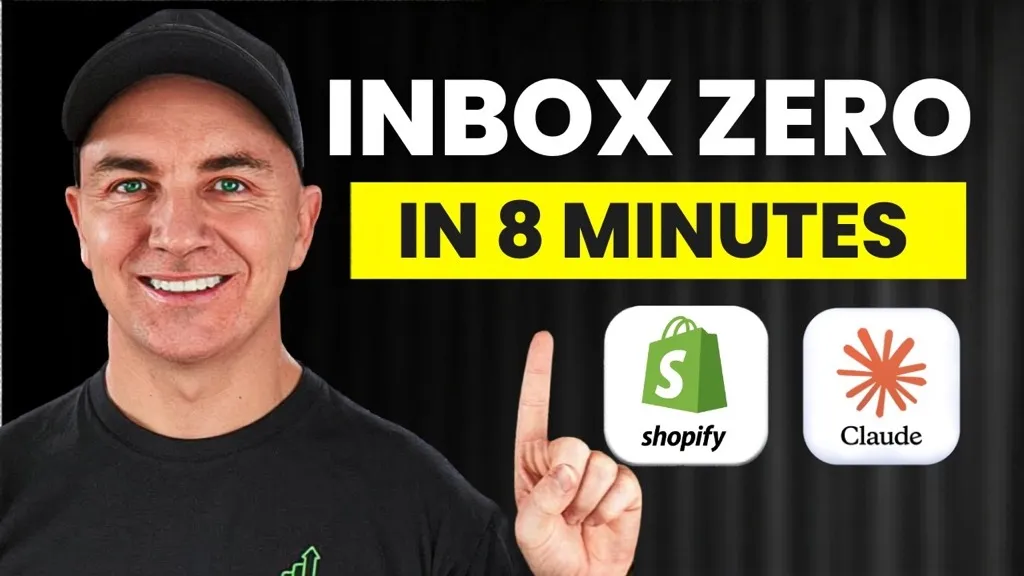
Watch the video version of this guide on YouTube (opens in a new tab).
You can train Claude to answer your Shopify customer service emails by connecting it to your email inbox and your Shopify store, installing a customer service skill, and letting it build an answer book from your store's policies and your past replies. It then drafts a reply to every new email directly in your inbox. You check the drafts, fix anything that is wrong, and once you trust it, schedule it to run through the day.
This is the written version of the video above, published in November 2026, so you can follow the setup step by step. Screens are as they were on that date.
What can Claude do in your customer service inbox?
I have trained Claude to answer every customer service email that comes into my store, so I never need to look at the inbox myself or hire someone to do it. A few real examples:
- "Where is my order?" Claude logs into Shopify, finds the order and the tracking number, and replies straight away.
- A damaged order with photos. It looked at the photos, worked through a resolution with the customer, and created a replacement order directly in Shopify.
- Friendly conversations. The replies are so warm that customers now send us their holiday photos and pictures of them using the product.
It also sends me a report every morning: which orders are waiting to ship, how fast we are shipping, which customers are about to complain, and who we are waiting on for a reply.
Which connectors do you need?
Claude needs two connectors so your inbox and your store can talk to each other:
- In Claude, click Customize on the left, then Connectors.
- Search for Shopify, click it and click Connect.
- Search for your email provider. I use Gmail, but Outlook and several others are there too. Click it and click Connect.
If you have not connected Shopify to Claude before, the Shopify AI Toolkit setup guide walks through it in more detail.
How do you set up the customer service project?
I create a separate Claude project for each role in the business, so the context for that role stays in one place. Think of them as your employees. We call them coworkers: one for customer service, one for marketing, one for operations and one for development.
- Go to Projects, click New project and call it something like "Customer service coworker".
- Click Create project.
- Click the +, go to Skills, then Manage skills, click Add and upload the customer service skill. The free skill is linked in the video description.
- Run the skill by typing
/and choosing it, then press enter.
How does Claude learn your store and your tone of voice?
When the skill runs for the first time it does two things. It reads your store, so it knows your brand, products and policies. Then it scans your sent emails to learn how you reply to customers now, so its drafts sound like you.
It checks that Gmail and Shopify are connected, then drafts a configuration and an answer book: the set answers your customers are most likely to need. It will also tell you what it could not find. On my demo store it found no shipping, cancellation or refund policy and no FAQ, so it asked me quick-fire questions instead:
- How fast do you dispatch? (Within 24 hours.)
- What does shipping cost? ($6.95.)
- What happens with a leaking or damaged bottle? (We need a little more information before we send a replacement.)
- Do you have a guarantee? (If you don't like the flavour within 30 days, full refund, no return needed.)
- Is there a cancellation fee? (No.)
- How should wholesale enquiries be handled? (Drafted for me to review.)
It then rebuilt the answer book with accurate information. Cross-check every answer against your real policies before you go any further. If you have never written your policies down, this is a good time to do it, and our live chat guide covers the questions customers ask most.
Why does Claude draft replies instead of sending them?
On each run, Claude checks for new emails and writes a draft reply in your email inbox, not in Claude. My test question was "If I order today, when can I expect it to arrive?" The draft greeted me by name, explained that today's orders had already gone out so a new order would ship Monday, gave the shipping cost and delivery time, mentioned the express upgrade, and explained what to do if anything arrived damaged. It was signed off by April, the name we gave our AI, and it read like a person wrote it.
If a draft needs changing, edit it before you click send. Claude sees your edits, so every new draft gets closer to the way you write. When you are confident in the replies, you can give it permission to send on your behalf. Until then, read every draft. It is how the AI gets smarter, and it means nothing wrong reaches a customer.
How do you make it run automatically?
Ask Claude to schedule the skill for you. I wrote: "Can you please schedule this skill to run three times a day? Let's run it at 8:00 am, at midday and at 3:00 pm. And please make sure you create a morning brief every day for me."
Claude creates a scheduled task that runs the skill at those times, checks the inbox and drafts the replies. You can review and send them from your phone wherever you are.
With customer service handled, you have time back to work on the store. The next skill I set up is a daily morning brief that reviews the whole business. If you want a Growth Advisor to set up AI coworkers like this across your business with you, that is what the Elite Team does.